Showing posts with label ibm. Show all posts

Thursday, May 5, 2016

Palo Alto/QRadar Netflow Integration

IBM has been saying since around 2012 that they integrate with Palo Alto for Layer 2 Netflow informatiion. Well an old QRadar I tested it on, did no such things; it actually stripped the Palo Alto-specific fields out of the payload. I read a lot of forums online saying the same thing. Luckily I had access to a brand new 7.2.6 demo VM and it works...sort of. The important thing is that it displays the full payload of the Netflow packet.

IBM provides a Security Content Pack for Palo Alto which as far as I can tell is useless. To get the data into QRadar properly we'll need to make custom fields (note that the "Application" field that QRadar uses port-based look ups will still be present in the log information).

Firstly, we'll need to set up a Netflow profile on the Palo Alto to point to the QRadar; make sure you check PAN-OS Field Types as this allows for User-ID and App-ID information to be sent. Also be sure to include a policy if they’re in different zones to permit the traffic.


Apply the profile to interfaces. Make sure these are inside interfaces and not web facing unless you’ll end up getting a lot of noise.


In the QRadar, add the Palo Alto device as a Flow Source, use the same port you specified in your Netflow profile on the Palo Alto
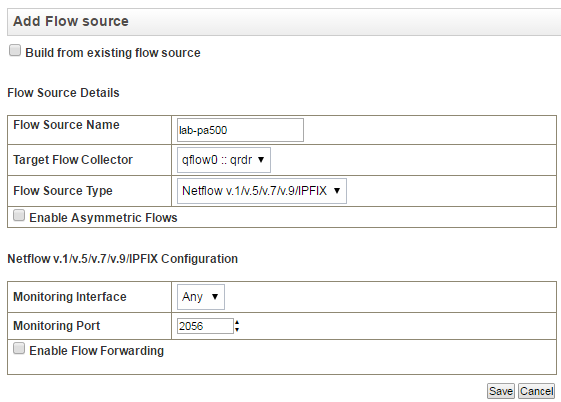

Once added you should see a bunch of flow traffic coming into the “Network Activity” tab in QRadar.

If you go into one of them, you’ll notice that QRadar doesn’t map Palo Alto’s Layer 7 information (App-ID and User-ID) correctly or at all for that matter. The current application being indexed for each flow is a port-based lookup that the QRadar performs.


To get around this we can create two Custom Flow Properties. Navigate to Admin> Flows> Custom Flow Properties and click Add at the top and fill out the little wizard-esque window with the appropriate fields, mine is below.
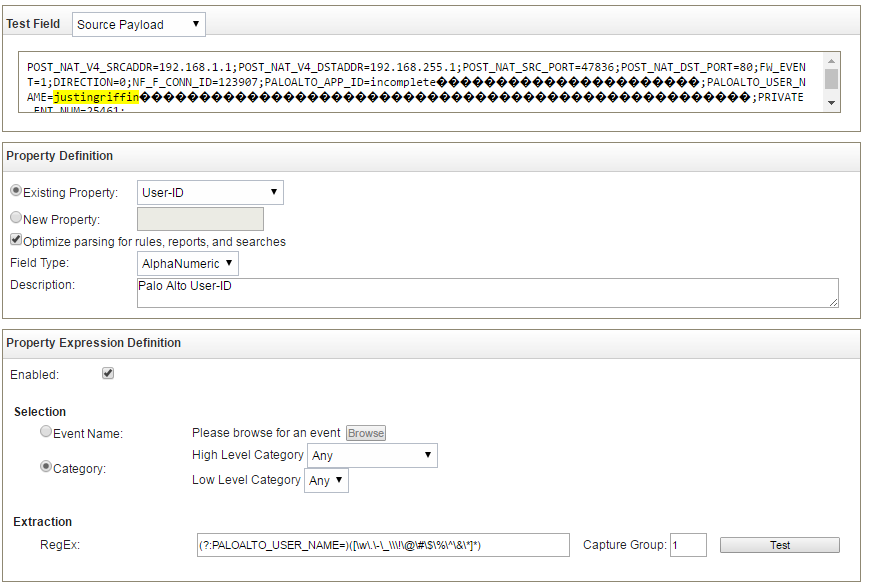

The regex I wrote for this should catch all alphanumeric character as well as generally used special characters as well as periods, hyphens, underscores, and backslashes (to accommodate the domain name being included in the username). I can’t imagine any other characters showing up in this field.

The Regex for User-ID fields: (?:PALOALTO_USER_NAME=)([\w\.\-\_\\\!\@\#\$\%\^\&\*]*)

You can go ahead and do the same for the application ID; luckily only alpha and hyphens will show up here because that’s all Palo Alto uses for its naming. I included underscores as well because application signatures can be user-created and they may end up using them.


The Regex for App-ID fields: (?:PALOALTO_APP_ID=)([A-Za-z\-\_]*)
  
Once that’s completed, you can go back to your Network Activity and see the applications and users being mapped correctly.


Now that we’re indexing App-ID and User-ID, we can use them for reporting and graphs. Some example of use cases would be:
  • Top-Talkers by App or User
  • Reference set of Users for use with rules
  • Behavior analysis of application use (thresholds)
  • Offenses based on unpermitted applications (if app is in not allowed reference set and from user x then fire offense)

Friday, November 27, 2015

Custom Parsers in IBM QRadar & Juniper STRM

I had some trouble getting all this around my head first time around so I thought I'd put it all together in one place; make things a little bit easier for both myself and whoever else cares to take a look!

Create LSX
First thing is to create a custom parser, also known as a Log Source Extension. This will allow the QRadar to parse custom logs and map data from them to columns in an event.

Do this by looking at all possible logs that will be incoming and specify the data you want to extract, this can include IP addresses, ports, and events. The most important being the event, this is the main component that QRadar will use to identify the log and map it to a QID. 

If you're going to use your own QIDs (which I would recommend) then you're going to want your Event to be mapped to something unique. Meaning if I have the following log:

2015-05-20 00:02:07,518 ERROR [common.ESBLogger] A1217ProducerEmailHandler -- processA1217Resquest -- Mapping not found in lookup table for requirement type code = 1036900347

The actual Event is the fact that the mapping was not found in the lookup table - this is what I'm going to want to look for in my parser. Now when I do something as specific as this, it really limits the amount of regex I actually have to use. If I wanted to use "ERROR" as my event, but also pick up "INFO" and "WARN", then I could use something like: 

(?<=\d\s)([A-Za-z]*)(?=\s\[)

This would result in my events being parsed as either INFO, ERROR, or WARN.

If I knew multiple types of events were going to be produced with the same syntax (following a double hyphen and ending in an equal sign, where Mapping not found in lookup table for requirement type code is in the log) I could use regex to match that:

(?<=\-\s)([A-Za-z\s]*)(?=\s\=)

This would be a bit more useful that just the category of the log.

Example of an LSX
<?xml!version="1.0" encoding="UTFd8"?>
<!--
Device Type: ESBLogger
Protocol: Syslog
-->

<devicedextension!xmlns="event_parsing/device_extension">

<!-- Do not remove the "allEventNames" value -->
<pattern id="allEventNames" xmlns="">
<![CDATA[(.*)]]>
</pattern>
<!-- Everything below this line can be modified --> 

<!-- Match event of Mapping not found -->

<pattern id="EventName1" xmlns="">
<![CDATA[(?<=\-\s)([A-Za-z\s]*)(?=\s\=)]>
</pattern>

<match-group order="1" description="ESBLogger" xmlns="">

<matcher field="EventName" order="1" patterndid="EventName1" capturedgroup="1" enabledsubstitutions="false"/>
<eventdmatchdmultiple patterndid="allEventNames" capturedgroupdindex="1" devicedeventdcategory="unknown" senddidentity="OverrideAndAlwaysSend" />
</match-group>
</devicedextension>

Complete walkthrough:
https://www.sans.org/reading-room/whitepapers/logging/qradar-log-source-extension-walkthrough-35452

Create QID
Once you create a custom parser, you need to map the parsed log to an Event. There are built in events which you can apply, however for complete customization you can create your own. Unfortunately the only way to do this is through the CLI of the QRadar box.

You're going to want to locate the low-level category for the QID map entry you want to create; use the following command for this:
/opt/qradar/bin/qidmap_cli.sh -l

If you want to search for a particular low-level category, you can use the grep command to refine the results; since my example is an application log I'm going to start there
/opt/qradar/bin/qidmap_cli.sh -l | grep Application

Once you know the category you can use the following command to create your QID:
qidmap_cli.sh -c --qname --qdescription --severity --lowlevelcategoryid


The following table provides the utility options; use -h for more options:
OptionsDescription
-cCreates a new QID map entry.
--qnameType the name you want to associate with this QID map entry. The name can be up to 255 characters in length, with no spaces.
--qdescriptionType a description for this QID map entry. The description can be up to 2048 characters in length with no spaces.
--severityType the severity level you want to assign to this QID map entry. The valid range is 0 to 10.
--lowlevelcategoryidType the low-level category ID you want to assign to this QID map entry.

Complete walkthrough:
https://www.juniper.net/techpubs/software/management/strm/2012_1_R1/strm-managing-qid-map.pdf

Setup Log Source
The first step is to upload the log source extension. There is a log source extension management GUI available within the Admin tab of Qradar. If the log source extension has the proper syntax, it will be accepted when uploaded to the console following the steps under the “add” action.

The next step is to create a generic log source using the “Universal DSM”. The log source needs to match against the data received from the log source. 

If the regular expression used to match against event names is working then the events should start appearing in the Qradar log window. At this point, the event name will show the “unknown” on the Qradar log viewer. Correctly matched fields such as source IP and Destination IP indicate proper functioning of the LSX.

Map Events
Unlike a DSM, a log source extension does not have any built in logic to help with event mapping. Each event shows “unknown”, however, we identified a place within each log to search for some text that will give us information on how to map a particular event. As each unknown event is matched, it will start to show that new event name each time that type of event is seen.

A button titled “Map Event” is available from the menu while viewing an event detail. This will give a pop up box showing the event name we are searching for in the log. There is a search dialog for selecting an available event name or “Qradar Identifier” or QID.

This data will also begin to populate any rules that reference this particular Qradar identifier.